# Part 1: Low-Fidelity Wireframes
Project Overview
Read the project overview here
# Introduction
Welcome to the initial phase of your final project journey!
After forming your teams and selecting a theme for your website, the next step is to start the design process with low-fidelity wireframes in Figma.
# The Essence of Low-fidelity Wireframes
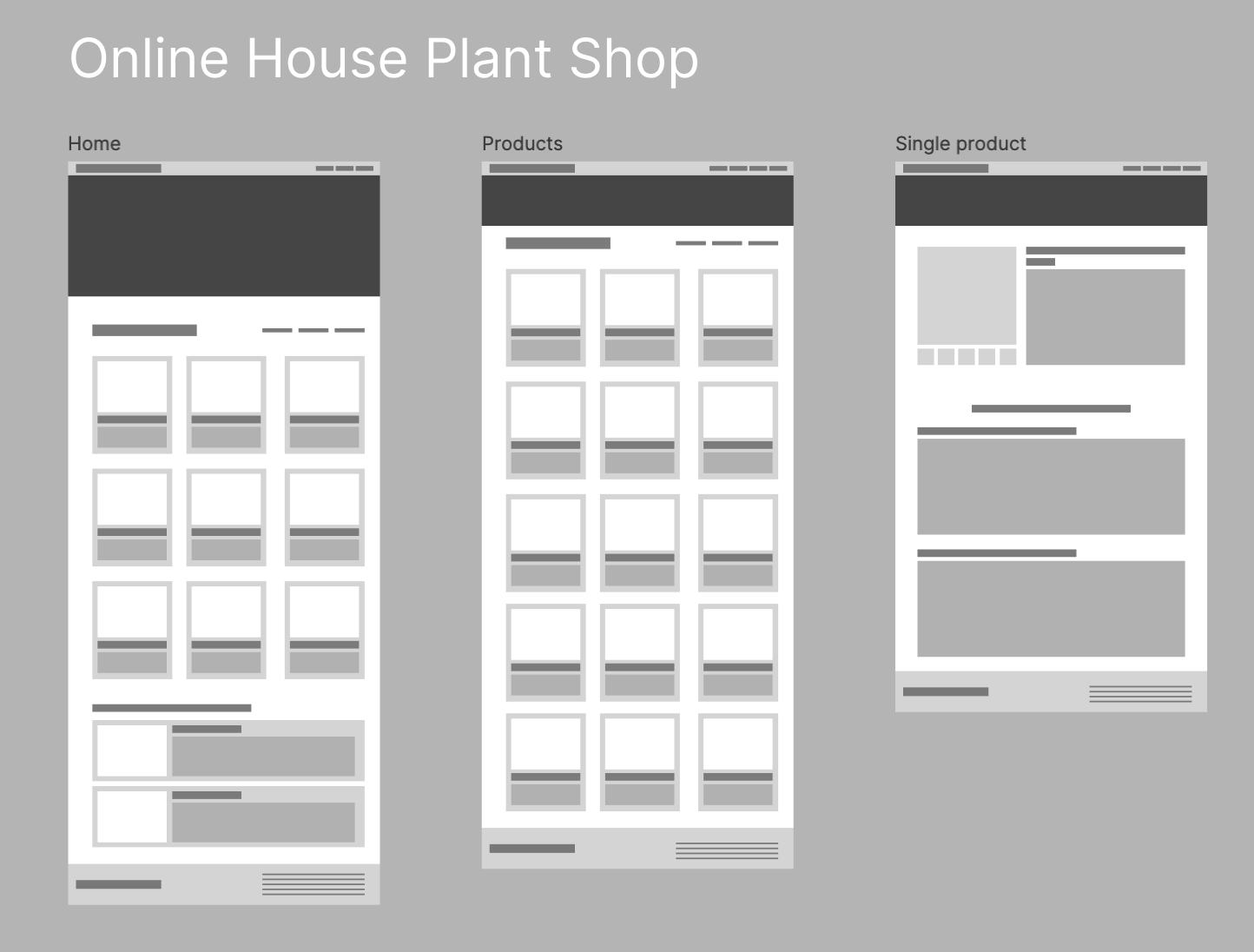
Low-fidelity wireframes are the backbone of the design brainstorming process, akin to the simplicity and rapid creation you find with paper sketches. Their primary purpose is to outline the spatial arrangements of content and functional elements across your website's screens, intentionally omitting design details such as colors, images, or typography. This minimalist approach keeps the focus squarely on the layout and user flow.
For this project phase, we'll bypass traditional paper sketches and dive straight into digital wireframing with Figma.
Key Guidelines:
- Avoid incorporating:
- Colors
- Images
- Detailed icons (use basic shapes as placeholders)
- Use placeholder text (e.g., lorem ipsum) for text-heavy sections.
# Designing Your Screens
- Each team must design a homepage.
- Additionally, every team member is responsible for creating two unique screens.
Thus, for a team of three, you'll be designing a total of seven screens.
What screens should you design?
In order to create a cohesive story when it comes time to present your designs in Part 5, it is important that you choose screens that complete one or two flows.
What is a flow? A flow is a sequence of screens that represent a user's journey while completing a specific task in your product. It shows how a user interacts with your design from start to finish, helping to create a clear and logical experience.
Example of a flow:
- Home Screen – Displays featured products and categories.
- earch Results Screen – Shows product listings based on the user’s search query.
- Product Details Screen – Provides product information, images, and an "Add to Cart" button.
- Cart Screen – Shows selected items with options to adjust quantity or remove items.
- Checkout Screen – Allows users to enter shipping details, payment information, and confirm the purchase.
- Order Confirmation Screen – Displays a summary of the order with an estimated delivery date.
By designing screens that follow a logical flow, you ensure that your design tells a complete story, making it easier for users (and stakeholders) to understand the experience.
# Project Instructions
- Share the Figma file with all team members and your professor to ensure collaborative access.
- Choose the size for your websites's design.
- Start designing your wireframes.
- Establish the foundational layout of your website.
- Organize your Figma canvas to clearly distinguish between each team member's contributions.
# Inspirational Example
# Evaluation Criteria
# Team and Theme Setup
- [ ] Formed a team of two through Brightspace > Activities > Groups.
- [ ] Selected a theme for your website.
# Figma Setup and Sharing
- [ ] Created a Figma project folder with a new file for the project.
- [ ] Shared the Figma project with all team members and the professor with editing permissions.
# Wireframe Design
- [ ] Decided on the size for your websites's design.
- [ ] Designed a homepage for your website.
- [ ] Each team member has created two additional unique screens (Total of 5 screens for a team of two).
- [ ] Ensured that wireframes are low-fidelity:
- [ ] No colors.
- [ ] No images.
- [ ] Icons are represented with basic shapes.
- [ ] Placeholder text (e.g., lorem ipsum) is used for text-heavy areas.
# Figma File Organization
- [ ] Laid out the basic structure of your design.
- [ ] Organized your canvas to clearly identify each member's screens.
# Submission
- [ ] Included in the comment section of your submission:
- [ ] The Figma link.
- [ ] The selected theme for your website.
- [ ] Names of all group members.
- [ ] Submitted by the deadline specific
Review this checklist before submitting to ensure all requirements are met.
# How to Submit
Your submission will be through Figma's sharing feature. On Brightspace in the submission comment, please include:
- The Figma project link
- Your websites's chosen theme
- The names of all team members
Make sure your professor has been added to the Figma Project with editing permissions.